

 Facebook
 messenger


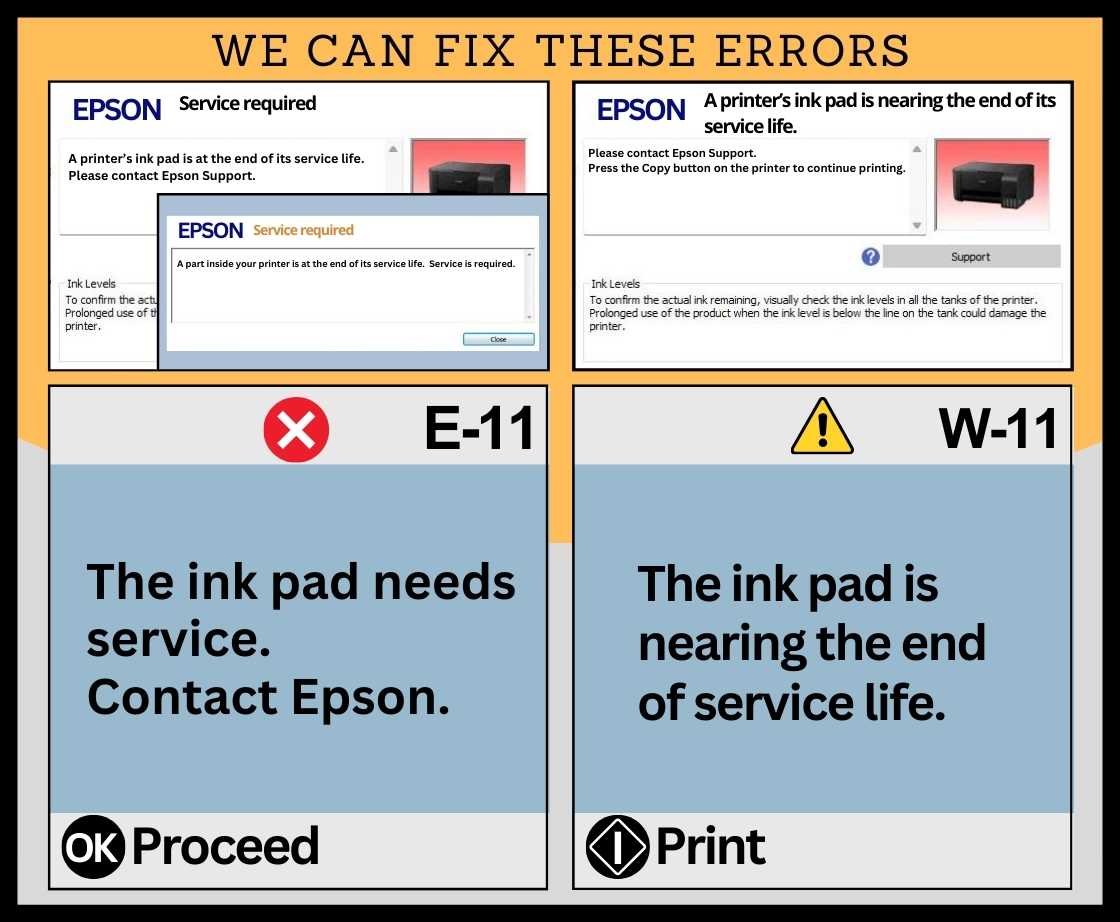


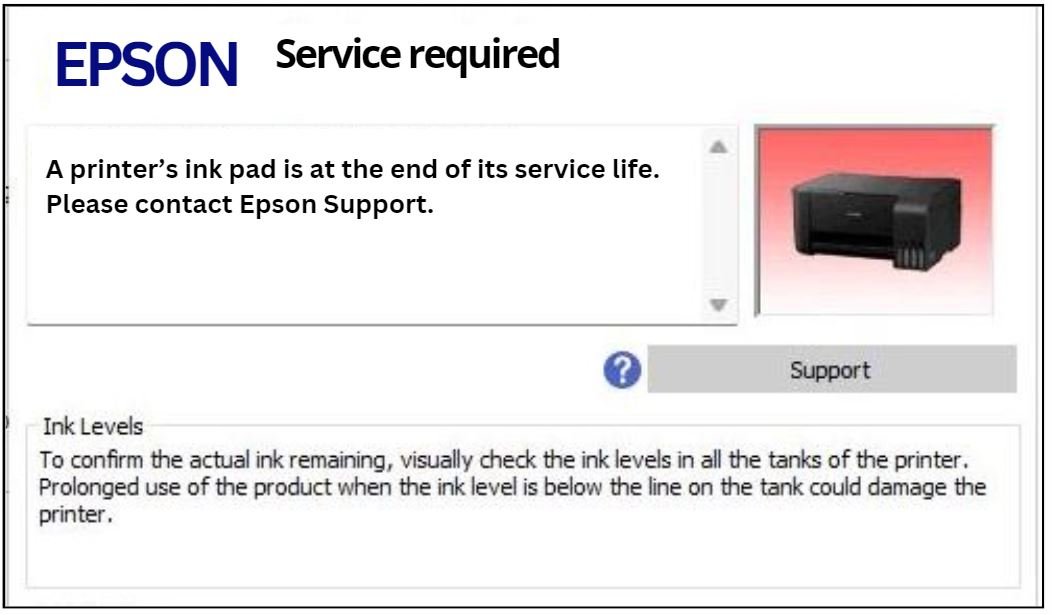
 A printer’s ink pad is at the end of its service life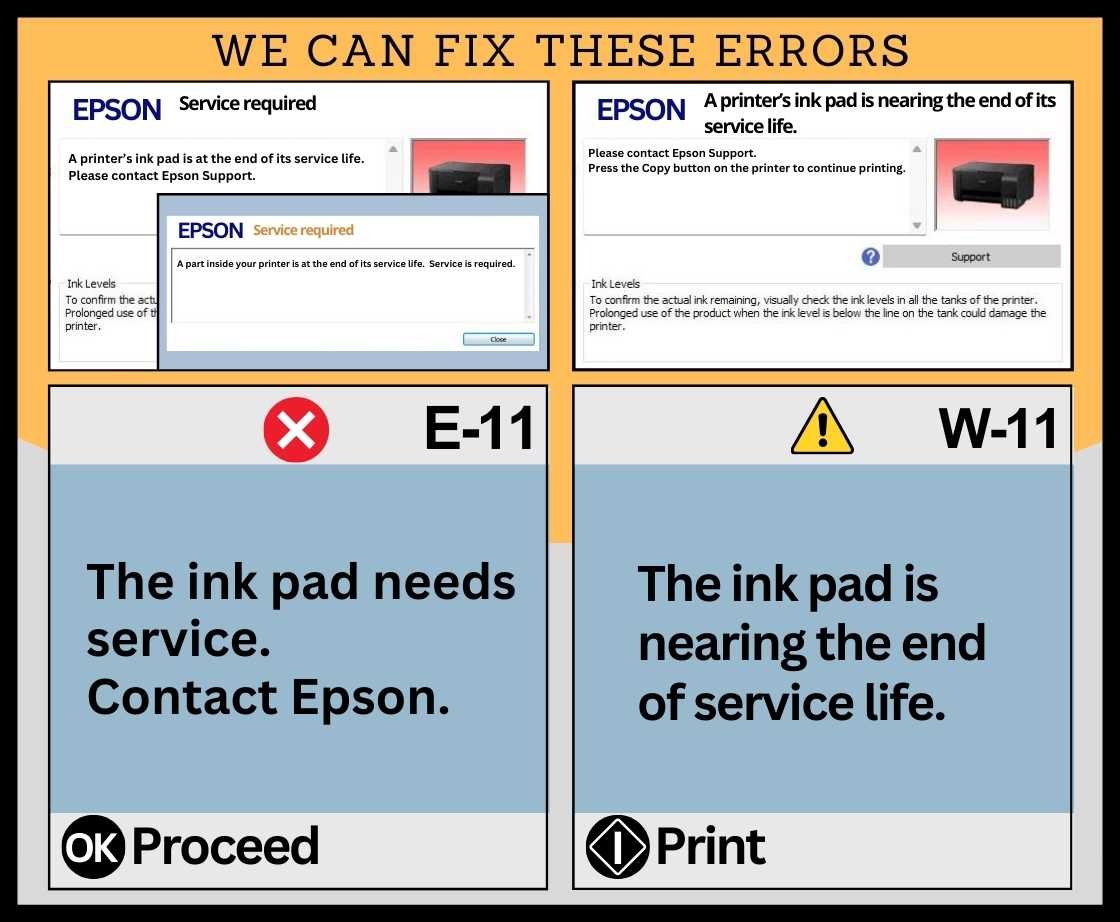

UNLIMITED RESET KEY

The unlimited reset key is an activation key for the Inkpad Resetter, Epson Adjustment Program & Canon Service Tool
The resetter and key are sent to your email or can be downloaded from our website.
Once the payment has been made, kindly CONTACT us at the following: Messenger, Telegram, WhatsApp , or our email address resetter.net@gmail.com for the UNLIMITED RESET KEY
The program can fix SERVICE REQUIRED ERROR, in which MAIN PAD COUNTER, PLATEN COUNTER & INK SYSTEM PAD COUNTER in Epson and Support Code 5B00 in Canon CAN BE RESET. DO NOT BUY if the error needs physical repair. You should check the printer error before buying. There is NO refund once purchased. CAREFULLY READ THE CONDITIONS.
NOTE: While resetting the counter can allow continued use of the printer, it does not address any physical issues related to full waste pads; those should be replaced or serviced by professionals when necessary. Also, the resetting of the waste ink pad counter cannot fix the PRINT QUALITY.
Compatible with Windows 7, 8, 10, and 11 It doesn’t run on a Mac Operating System
YOU MUST FOLLOW THE INSTRUCTIONS ON HOW TO DOWNLOAD AND USE THE PROGRAM:
HOW TO DOWNLOAD AND ACTIVATE THE INKPAD RESETTER
HOW TO TURN OFF THE WINDOWS ANTIVIRUS
HOW TO RESET THE WASTE INK PAD COUNTER
CONDITION: An unlimited reset key is an activation key that doesn’t expire and can be used without limit on one PC. However, the unlimited reset key can only be used on one PC or computer. You need to buy another key if you want to use the program on another PC. One Unlimited key applies per one model. If you need key for another model, you need to purchase another key for it.
Unlimited Reset key can solve the following error in Epson printers
A printer’s ink pad is at the end of its service life
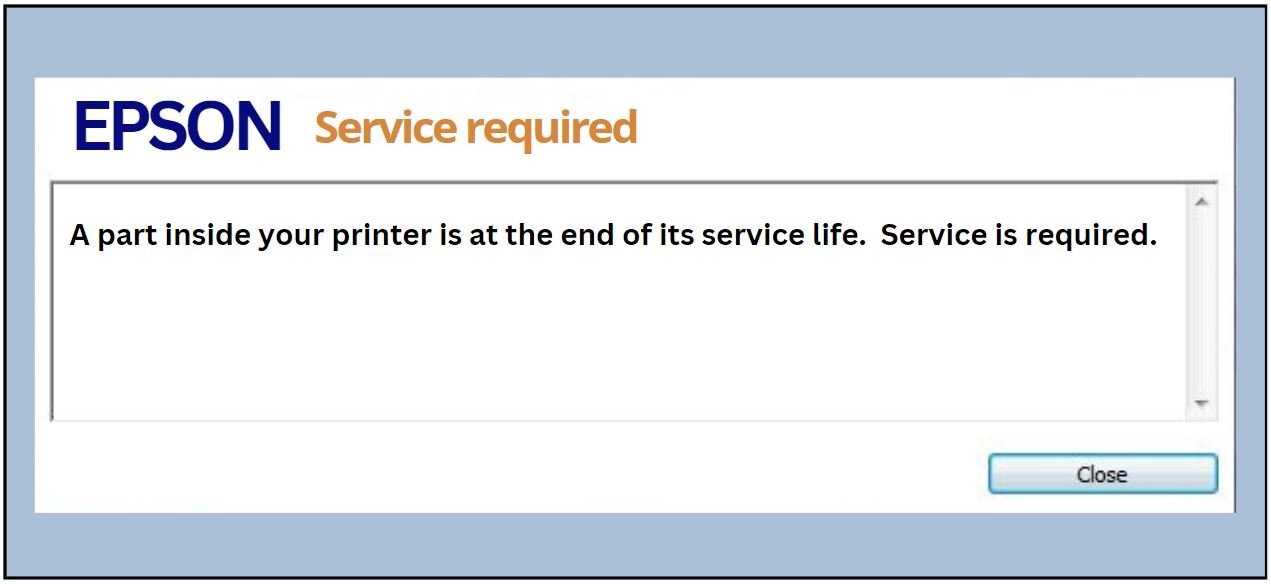
A part inside your printer is at the end of its service life. Service is required.
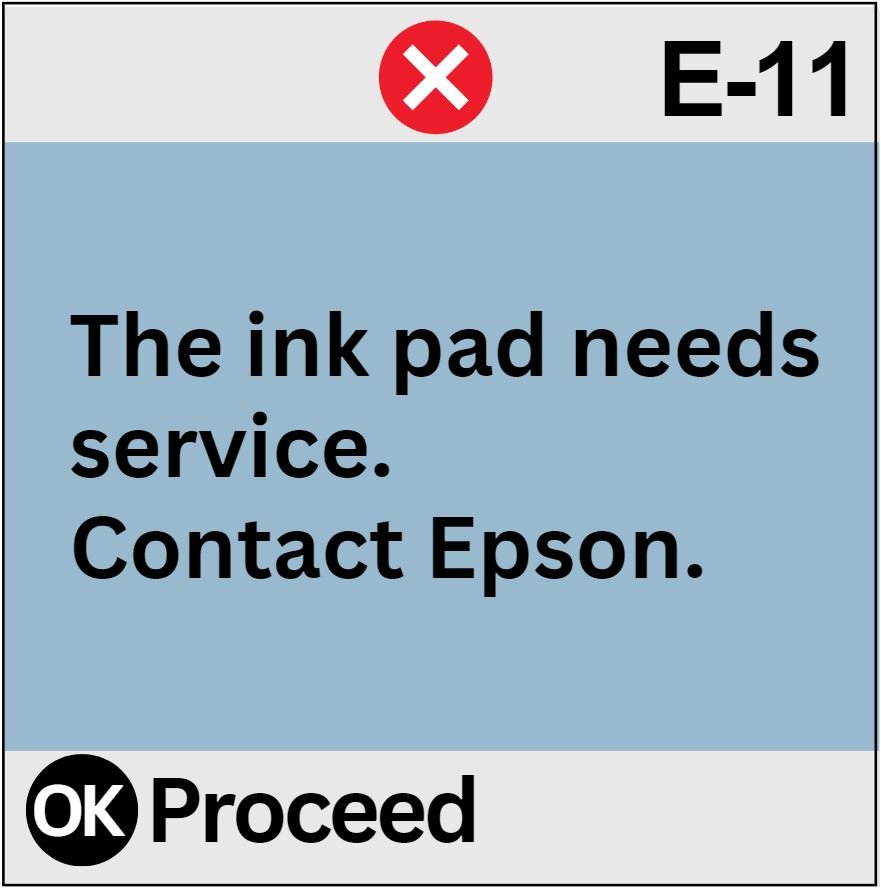
The ink pad needs service. Contact Epson.
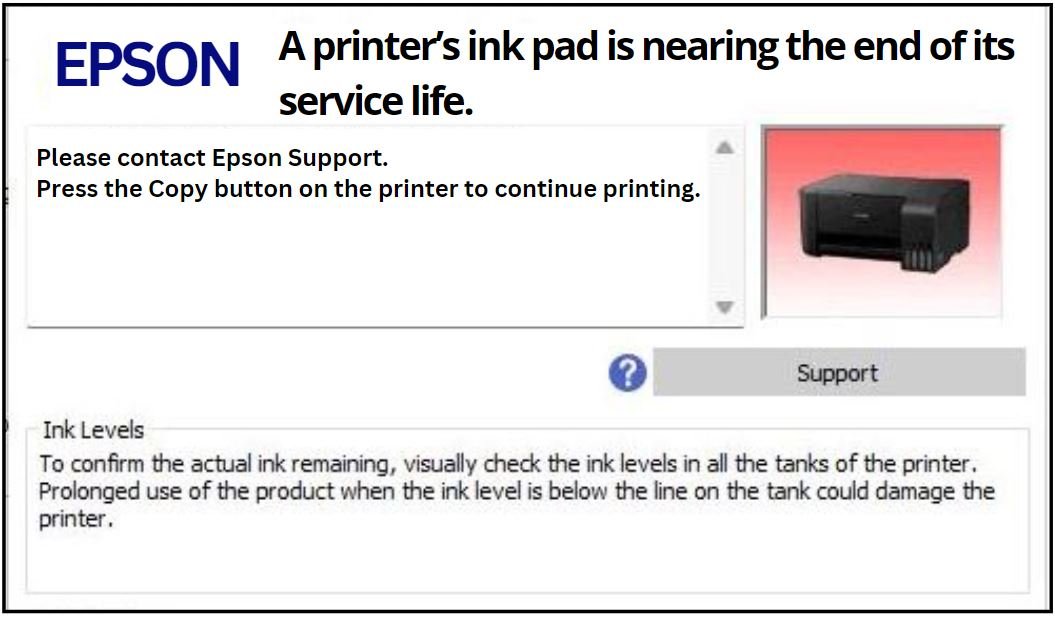
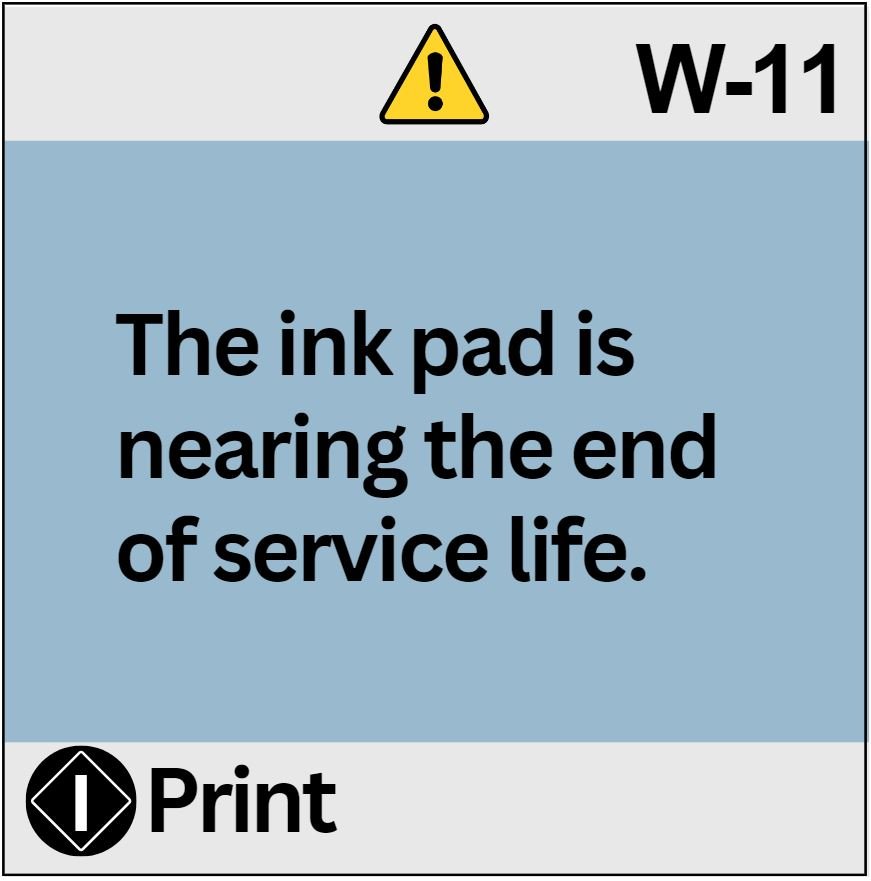
A printer’s ink pad is nearing the end of its service life.
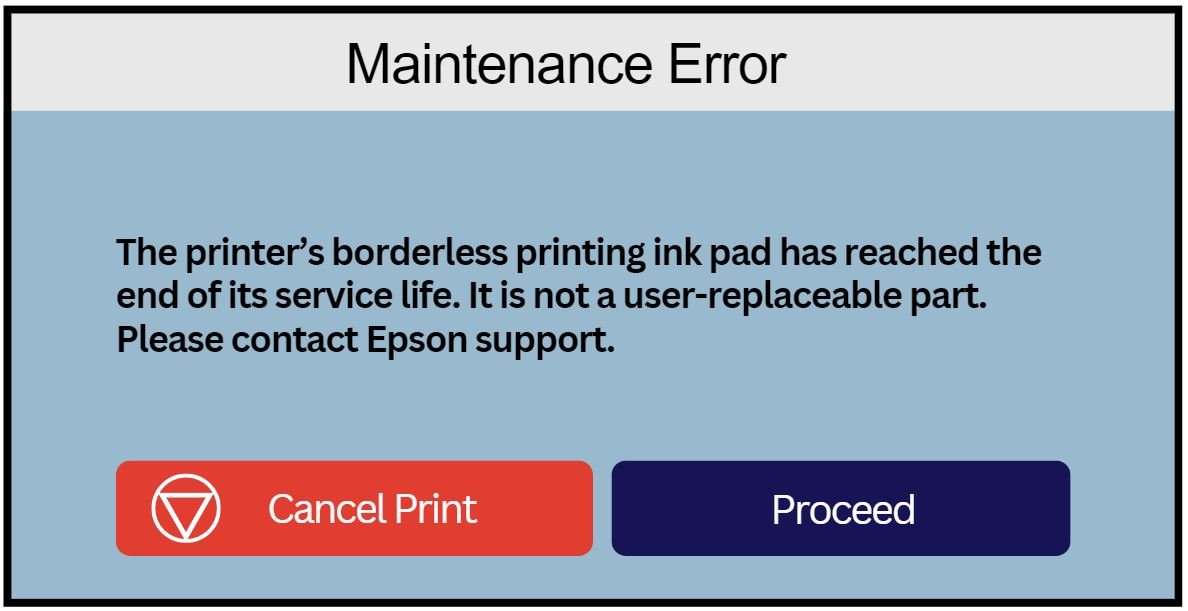
The printer’s borderless printing ink pad has reached the end of its service life. It is not a user-replaceable part.
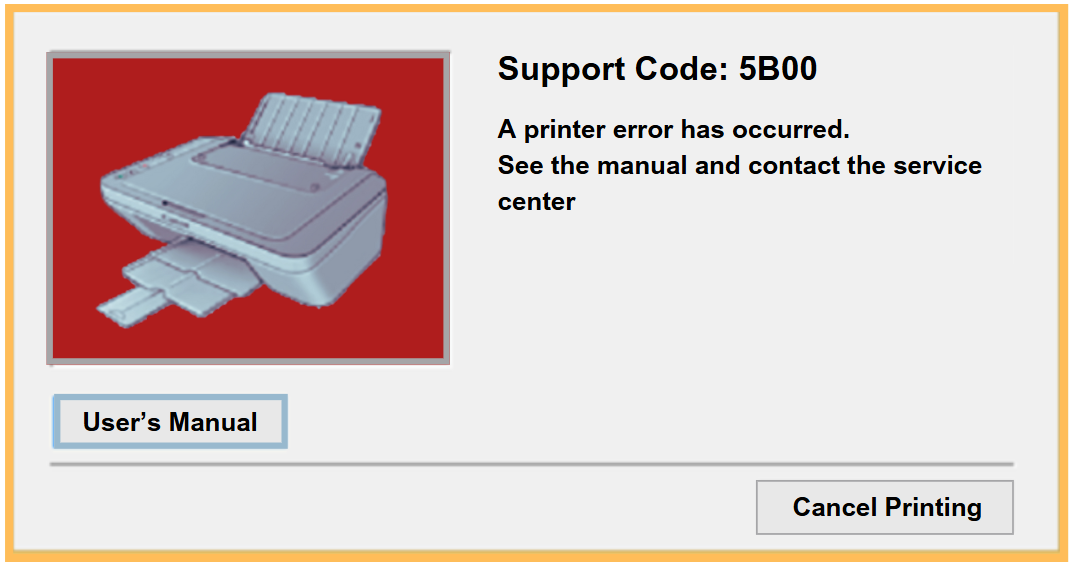
Support Code: 5B00
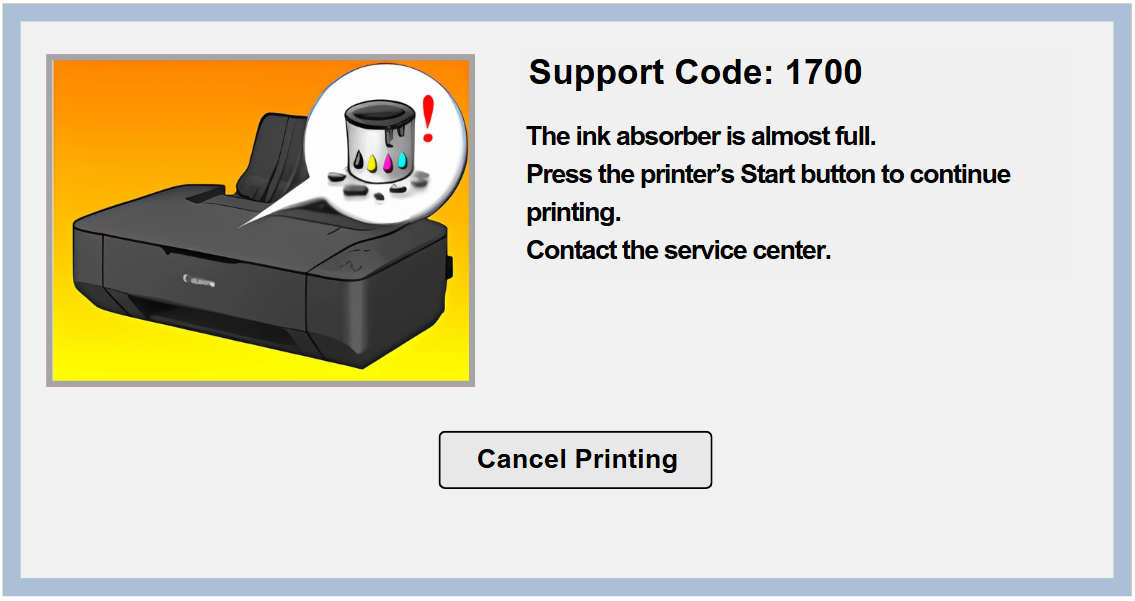
Support Code: 1700, 1701. The ink absorber is almost full
| In Epson printers, these errors can be fixed by resetting the waste ink pad counter: | ||
|---|---|---|
| Error Code | Can be fixed | Situation |
| E-01 | No | A printer error has occurred. |
| E-02 | No | A scanner error has occurred. |
| E-11 | Yes | An ink pad needs to be replaced. |
| E-11 | Yes | The ink pad needs needs service. |
| E-12 | Yes | A borderless printing ink pad needs to be replaced. |
| – | Yes | The printer’s borderless printing ink pad has reached the end of its service life. |
| W-01 | No | A paper jam has occurred. |
| W-11 | Yes | An ink pad is nearing the end of its service life. |
| W-14 | Yes | A borderless printing ink pad is nearing the end of its service life. |
| – | No | Any WiFi-related error occurred. |
| – | No | Maintenance box counter |
| E-11 | Yes | Platen pad counter (borderless) |
| E-11 | Yes | Main pad counter |
| E-11 | Yes | Ink system pad counter |
| Recovery Mode | No | The printer has started in recovery mode because the firmware update failed. |
| – | No | Print Quality |
| Epson printers that CAN be RESET (available) |
|---|
| EcoTank ET-Series |
| EcoTank ET-14000, EcoTank ET-1110, EcoTank ET-1112, EcoTank ET-1113, EcoTank ET-1114, EcoTank ET-1115, EcoTank ET-1116, EcoTank ET-1118, EcoTank ET-1810, EcoTank ET-1811, EcoTank ET-1812, EcoTank ET-1813, EcoTank ET-1815, EcoTank ET-2400, EcoTank ET-2402, EcoTank ET-2403, EcoTank ET-2404, EcoTank ET-2405, EcoTank ET-2406, EcoTank ET-2408, EcoTank ET-2500, EcoTank ET-2550, EcoTank ET-2600, EcoTank ET-2610, EcoTank ET-2650, EcoTank ET-2700, EcoTank ET-2701, EcoTank ET-2702, EcoTank ET-2703, EcoTank ET-2704, EcoTank ET-2705, EcoTank ET-2706, EcoTank ET-2710, EcoTank ET-2711, EcoTank ET-2712, EcoTank ET-2713, EcoTank ET-2714, EcoTank ET-2715, EcoTank ET-2716, EcoTank ET-2718, ET-2720, EcoTank ET-2721, EcoTank ET-2722, EcoTank ET-2723, EcoTank ET-2724, EcoTank ET-2725, EcoTank ET-2726, EcoTank ET-2728, EcoTank ET-2750, EcoTank ET-2751, EcoTank ET-2756, EcoTank ET-2760, EcoTank ET-2761, EcoTank ET-2766, EcoTank ET-2800, EcoTank ET-2801, EcoTank ET-2802, EcoTank ET-2803, EcoTank ET-2804, EcoTank ET-2805, EcoTank ET-2806, EcoTank ET-2808, EcoTank ET-2810, EcoTank ET-2811, EcoTank ET-2812, EcoTank ET-2813, EcoTank ET-2814, EcoTank ET-2815, EcoTank ET-2816, EcoTank ET-2818, EcoTank ET-2820, EcoTank ET-2821, EcoTank ET-2822, EcoTank ET-2823, EcoTank ET-2824, EcoTank ET-2825, EcoTank ET-2826, EcoTank ET-2828, EcoTank ET-2850, EcoTank ET-2851, EcoTank ET-2853, EcoTank ET-2855, EcoTank ET-2856, EcoTank ET-2860, EcoTank ET-2861, EcoTank ET-2862, EcoTank ET-2864, EcoTank ET-2865, EcoTank ET-2870, EcoTank ET-2871, EcoTank ET-2873, EcoTank ET-2875, EcoTank ET-3600, EcoTank ET-4500, EcoTank ET-4550, EcoTank ET-4700, EcoTank ET-4800, EcoTank ET-M1100, EcoTank ET-M1108, EcoTank ET-M1109, EcoTank ET-M1120, EcoTank ET-M1128, EcoTank ET-M1129, EcoTank ET-M2120, EcoTank ET-M2128, EcoTank ET-M2129 |
| L-Series |
| L100, L101, L110, L111, L120, L121, L130, L132, L200, L201, L210, L211, L220, L222, L300, L301, L310, L312, L313, L350, L351, L355, L356, L358, L360, L362, L363, L364, L365, L366, L375, L376, L380, L382, L383, L385, L386, L395, L396, L405, L455, L456, L475, L485, L486, L495, L496, L550, L551, L555, L556, L557, L558, L559, L565, L566, L605, L606, L655, L656, L575, L800, L801, L805, L810, L850, L1110, L1118, L1119, L1210, L1216, L1218, L1219, L1230, L1236, L1238, L1239, L1250, L1256, L1258, L1259, L1270, L1276, L1278, L1279, L1300, L1800, L3050, L3060, L3070, L3100, L3101, L3104, L3105, L3106, L3107, L3108, L3109, L3110, L3111, L3114, L3115, L3116, L3117, L3118, L3119, L3150, L3151, L3152, L3153, L3156, L3158, L3160, L3161, L3163, L3165, L3166, L3168, L3200, L3201, L3203, L3205, L3206, L3207, L3208, L3209, L3210, L3211, L3213, L3215, L3216, L3217, L3218, L3219, L3250, L3251, L3253, L3255, L3256, L3257, L3258, L3259, L3260, L3261, L3263, L3265, L3266, L3267, L3268, L3269, L3270, L3271, L3273, L3275, L3276, L3277, L3278, L3279, L3280, L3281, L3283, L3285, L3286, L3287, L3288, L3289, L3230, L3233, L3235, L3236, L3237, L3238, L3239, L4150, L4156, L4158, L4160, L4162, L4164, L4166, L4167, L4168, L4260, L4261, L4263, L4265, L4266, L4267, L4268, L4269, L5190, L5196, L5198, L5290, L5296, L5298, L5310, L5316, L5318 |
| XP-Series |
| XP-20, XP-30, XP-33, XP-55, XP-100, XP-101, XP-102, XP-103, XP-104, XP-200, XP-201, XP-202, XP-203, XP-204, XP-205, XP-206, XP-207, XP-208, XP-210, XP-211, XP-212, XP-213, XP-214, XP-215, XP-216, XP-217, XP-220, XP-221, XP-225, XP-230, XP-231, XP-235, XP-240, XP-241, XP-242, XP-243, XP-245, XP-247, XP-255, XP-257, XP-300, XP-301, XP-302, XP-303, XP-305, XP-306, XP-310, XP-311, XP-312, XP-313, XP-314, XP-315, XP-316, XP-320, XP-322, XP-323, XP-324, XP-325, XP-330, XP-332, XP-333, XP-334, XP-335, XP-340, XP-342, XP-343, XP-344, XP-345, XP-352, XP-355, XP-400, XP-401, XP-402, XP-403, XP-405, XP-406, XP-410, XP-411, XP-412, XP-413, XP-415, XP-416, XP-420, XP-421, XP-422, XP-423, XP-424, XP-425, XP-430, XP-431, XP-432, XP-433, XP-434, XP-435, XP-440, XP-441, XP-442, XP-443, XP-445, XP-446, XP-447, XP-452, XP-455, XP-510, XP-520, XP-530, XP-540, XP-600, XP-601, XP-605, XP-610, XP-611, XP-615, XP-620, XP-621, XP-625, XP-630, XP-631, XP-635, XP-640, XP-641, XP-645, XP-700, XP-701, XP-702, XP-710, XP-720, XP-721, XP-725, XP-750, XP-760, XP-800, XP-801, XP-802, XP-810, XP-820, XP-821, XP-830, XP-850, XP-860, XP-900, XP-730, XP-950, XP-960, XP-970, XP-2100, XP-2101, XP-2105, XP-2150, XP-2151, XP-2150, XP-2200, XP-2201, XP-2205, XP-7100, XP-7101, XP-7105 |
| M-Series |
| M100, M105, M1100, M1108, M1109, M1120, M1128, M1129, M200, M205, M2120, M2128, M2129 |
| In Canon printers, the following errors can be fixed | |
| Can be fixed | Error |
| Yes | 5B00 |
| Yes | 1700 |
| Yes | 1701 |
| Yes | Waste Ink Pad Reset |
| Yes | Clear Ink Counter |
| No | Cartridge problem |
| No | Ink levels |
| No | Scanner |
| No | General errors |
| No | Other failures |
| Canon printers that CAN’T be RESET by the tool are the following: | |
|---|---|
| Can reset | Canon printer model |
| Disposable | MG24xx, MG25xxs, MG29xx, MG30xx, G3060/2060/1020, IP2870/2880s, E4xx, E3170, E3370, IX2810, TS202/207/307/8070 |
| No | E400 series: E400, E404, E407, E408 |
| No | E410 series: E410, E414, E417, E418 |
| No | E460 series: E460, E461,E464 |
| No | E470 series: E470, E471, E477, E478 |
| No | E3170, E3370 |
| No | IP2870S, IP2880S |
| No | MG2550, MG2570S,MG2580S |
| No | MG3000 series: MG3010, MG3020, MG3022, MG3040, MG3050, MG3050s, MG3051, MG3052, MG3053 |
| No | MG3060, MG3070, MG3077, MG3070S, MG3077S, MG3080, MG3090 |
| No | TS202, TS207, TS307, TS8070 |
| No | TS3100 series:TS3120 TS3122 TS3129 TS3140 TS3150 TS3151 TS3160 TS3165 TS3166 TS3170 TS3170S TS3177S TS3180 TS3190 TS3195 |
| No | IX2810 |
| No | MG29xx |
| No | MG24xx |
| No | MG24xx |
| No | MG25xxs |
| No | G3060, G2060, G1020 |
| No | G1726 |
| CANON printers that CAN be RESET by the Tool (available) |
|---|
| E-series |
| E200 series: E300 series: E480 series: E480, E481, E484, E488, E489 E510 E514 E560 series: E3100 series: E4270 series: |
| G-series |
| G1000 series: G1000, G1100, G1200, G1400, G1500, G1800, G1900 G1010 series: G1010, G1110, G1120, G1410, G1420, G1411, G1510, G1520, G1810, G1820, G1910, G1920, G1922 G2000 series: G2010, G2012, G2020, G2021, G2030 G2100, G2110, G2200, G2400, G2410, G2411, G2420, G4260, G2500, G2510, G2520, G2600, G2610, G2800, G2810, G2820, G2821, G2860, G2900, G2910, G2915, G2920, G2921, G2923, G2924, G2960, G2962, G2963 G3000 series: G3000, G3030, G3060, G3100, G3110 G3200, G3400, G3500, G3600, G3800, G3900 G3010 series: G3010, G3012, G3020, G3021, G3310 G3410, G3411, G3420, G3460, G3510, G3520, G3610, G3620, G3625, G3665, G3810, G3820, G3821, G3860, G3910, G3915, G3920, G3923, G3960, G3962, G3963, G4000 series: G4000, G4010, G4100, G4110, G4200, G4210, G4400, G4410, G4500, G4510, G4600, G4610, G4800, G4810, G4900, G4902, G4910 G5000 series: G5000 G5010, G5011, G5020 G5030, G5040 G5050 G5070 G5080, G5090, G5092 G6000 series: G6000 G6010 G6011, G6020 G6030, G6040 G6050, G6060, G6065, G6070 G6080, G6090, G6091, G6092 G6000i G7000 series: G7010, G7011, G7020, G7050, G7060, G7065, G7070, G7080, G7090, G7091, G7092 |
| GM-series |
| GM Series: GM2000, GM2010, GM2011, GM2030, GM2040, GM2050, GM2070, GM2080, GM2090, GM2092, GM4010, GM4011, GM4030, GM4040, GM4050, GM4070, GM4080, GM4090, GM4092 |
| GX-series |
| GX Series GX1000 GX2000 GX3000 GX4000 GX5000 GX5500 GX6000 GX6500 GX7000 |
| IB-series |
| IB4000 series: IB4010, IB4020,IB4040, IB4050, IB4060,IB4070, IB4080,IB4090 IB4100 series: IB4110, IB4120,IB4140, IB4150, IB4160,IB4170, IB4180,IB4190 |
| IP-series |
| IP110, IP1200, iP1300, iP1600, iP1700, IP1800, iP1900, iP2200, iP2500, IP2600, iP2700, IP2770, IP2772, IP2800, IP3600, IP3680, IP4600, IP4700, IP4800, IP4810, IP4840, IP4850, IP4870, IP4900 , IP4910, IP4940, IP4970, IP4980, IP4990, IP5810, IP5880, IP7200, IP7240 , IP7270, IP8700, IP8740, IP8750, IP8770, IP8780 |
| IX-series |
| IX6500, IX6510, IX6560 IX6700, IX6710, IX6720, IX6730, IX6750, IX6760, IX6770, IX6780 IX68000, IX6810, IX6820, IX6830, 6840, IX6850, IX6860, IX6870, IX6880, IX7000 |
| MB-series |
| MB2000 series: MB2010, MB2020, MB2040, MB2050, MB2060 MB2100 series: MB2110 MB2120 MB2140 MB2150 MB2160 MB2300 series: MB2320, MB2340, MB2350, MB2360, MB2390 MB2700 series: MB2710 MB2720 MB2740 MB2750 MB2760 MB2790 MB5000 series: MB5010 MB5020 MB5040 MB5050 MB5060 MB5070 MB5080 MB5090 MB5100 series: MB5110 MB5120 MB5140 MB5150 MB5160 MB5170 MB5180 MB5190 MB5400 series: MB5410 MB5420 MB5440 MB5450 MB5460 MB5470 MB5480 MB5490 |
| MG-series |
| MG3500 series: MG3510, MG3540 MG3570 MG3600 series: MG3610, MG3620 MG3640 MG3650 MG3660 MG3670 MG3680 MG4100 series: MG4140 MG5050 series: MG5500 series: MG5140, MG5240 MG5270 MG5340 MG5400 MG5450 MG5500, MG5510, MG5520, MG5540, MG5550, MG5560, MG5570, MG5580 MG5600 series: MG5610, MG5620, MG5640, MG5650, MG5660, MG5670, MG5680 MG5700 series: MG5700, MG5710, MG5720 MG5721 MG5722 MG5740 MG5750 MG5751 MG5752 MG5753 MG5760 MG5765 MG5766 MG5770 MG5780 MG5790 MG5795 MG6100 series: MG6140, MG6150, MG6240 MG6300 MG6400 MG6530 MG6600 MG6700 series: MG6800 series: MG6820 MG6821MG6822 MG6840 MG6850 MG6851 MG6852 MG6853 MG6860 MG6865 MG6866 MG6870 MG6880 MG6890 MG6900 MG6930 MG7100 series: MG7700 series: MG7710 MG7720 MG7740 MG7750 MG7751 MG7752 MG7753 MG7760 MG7765 MG7766 MG7770 MG7780 MG7790 MG8140, MG8170, MG8240 |
| MP series |
| MP230, MP237, MP250, MP258, MP260, MP270, MP278, MP280, MP287, MP480, MP490, MP497, MP540, MP550, MP560, MP620, MP630, MP640, MP980, MP990 |
| MX-series |
| MX320 series:MX320, MX328 MX330 series:MX330, MX338 MX340 series:MX340, MX347, MX348 MX350 series:MX350, MX357, MX358 MX360 series, MX370 series, MX377, MX390 series, MX397: MX470 series: MX471, MX472, MX474, MX475, MX476, MX477, MX478 MX450 series: MX490 series: MX491, MX492, MX494, MX495, MX496, MX497, MX498, MX499 MX520 series: MX530 series: MX531, MX532, MX534, MX535, MX536, MX537, MX538 MX710 series, MX720 series, MX860 Series, MX890 series: MX920 series: MX924 |
| P200 series |
| Pro Series: PRO-1 series PRO-1 v1-1 series PRO-10 series PRO-100 series PRO-1000 series PRO-100S series PRO-10S series PRO-500 series Pro9000II series Pro9500II series imagePROGRAF PRO-300 |
| TR-series |
| TR4500 – TR4520 – TR4522 – TR4521 – TR4530 – TR4540 – TR4550 – TR4555 -TR4570 – TR4570S – TR4575 – TR4575S TR5010 TR5020 TR5040 TR5050 TR5051 TR5053 TR5060 TR5070 TR5080 TR5090 TR6010 TR6020 TR6040 TR6050 TR6051 TR6052 TR6060 TR7800 series TR6070 TR6080 TR8010 TR8020 TR8040 TR8050 TR8051 TR8052 TR8053 TR8060 TR8070 TR8080 TR8090 TR9010 TR9020 TR9040 TR9050 TR9055 TR9060 TR9080 TR9530 series |
| TS-series |
| TS200 series: TS300 series: TS700, TS703, TS704, TS705, TS707, TS708 series: TS3300 series:TS3310 TS3320 TS3322, TS3325, TS3327, TS3329 TS3340 TS3350 TS3351 TS3360 TS3365 TS3366 TS3370 TS3370S TS3377S TS3380 TS3390, TS3391, TS3392, TS3395 TS5000 series:TS5010 TS5020 TS5040 TS5050 TS5051 TS5053 TS5060 TS5070 TS5080 TS5090 TS5350i TS5040 TS5100 series:TS5110 TS5120 TS5140 TS5150 TS5151 TS5160 TS5170 TS5180 TS5320, TS5330, TS5333, TS5340, TS5350, TS5351, TS5352, TS5353, TS5360, TS5365, TS5370, TS5390, TS5391, TS5392 TS6000 series:TS6010 TS6020 TS6040 TS6050 TS6051 TS6052 TS6060 TS6070 TS6080 TS6100 series:TS6110 TS6120 TS6140 TS6150 TS6151 TS6160 TS6200 series: TS6230, TS6280 TS6300 series: TS6320, TS6330, TS6340, TS6350, TS6351, TS6356, TS6360, TS6365 , TS6370, TS6391, TS6392, TS6630, TS6730 TS7500 series: TS7600i TS7700, TS7700i, TS7700A TS8000 series:TS8010 TS8020 TS8040 TS8050 TS8051 TS8052 TS8053 TS8060 TS8070 TS8080 TS8090 TS8100 series:TS8120, TS8140, TS8150, TS8151, TS8152, TS8160, TS8170, TS8190, TS8195 TS8200 series: TS8220, TS8230, TS8250, TS8251, TS8280 TS8320, TS8322, TS8340, TS8350, TS8351, TS8352, TS8360, TS8370, TS8390, TS8391, TS8392 TS8500 series: TS8530 TS8700 series TS9000 series:TS9010 TS9020 TS9040 TS9050 TS9055 TS9060 TS9080 TS9100 series:TS9120, TS9140, TS9150, TS9155, TS9160, TS9170 TS9500 series: TS9510, TS9520, TS9560, TS9570, TS9580 |
| XK-series |
| XK50 series: XK60 series: XK70 series: XK80 series XK100 XK110 XK120 series XK500 |
| CANON SERVICE TOOL DOES NOT WORK IF IT HAS TREATED WITH PREVIOUS VERSIONS (ST5610, 5510, 5402 5306 5204 5103 4905, 4720, 3200, 3400 4620 E500, etc.), DAMAGED EEPROM and can no longer enter service mode, indicates the orange led or error 006/005/009/002, B203/204, 1723/1726, maintenance cartridge, 5011/12, 5200, 5400 or 6004 |
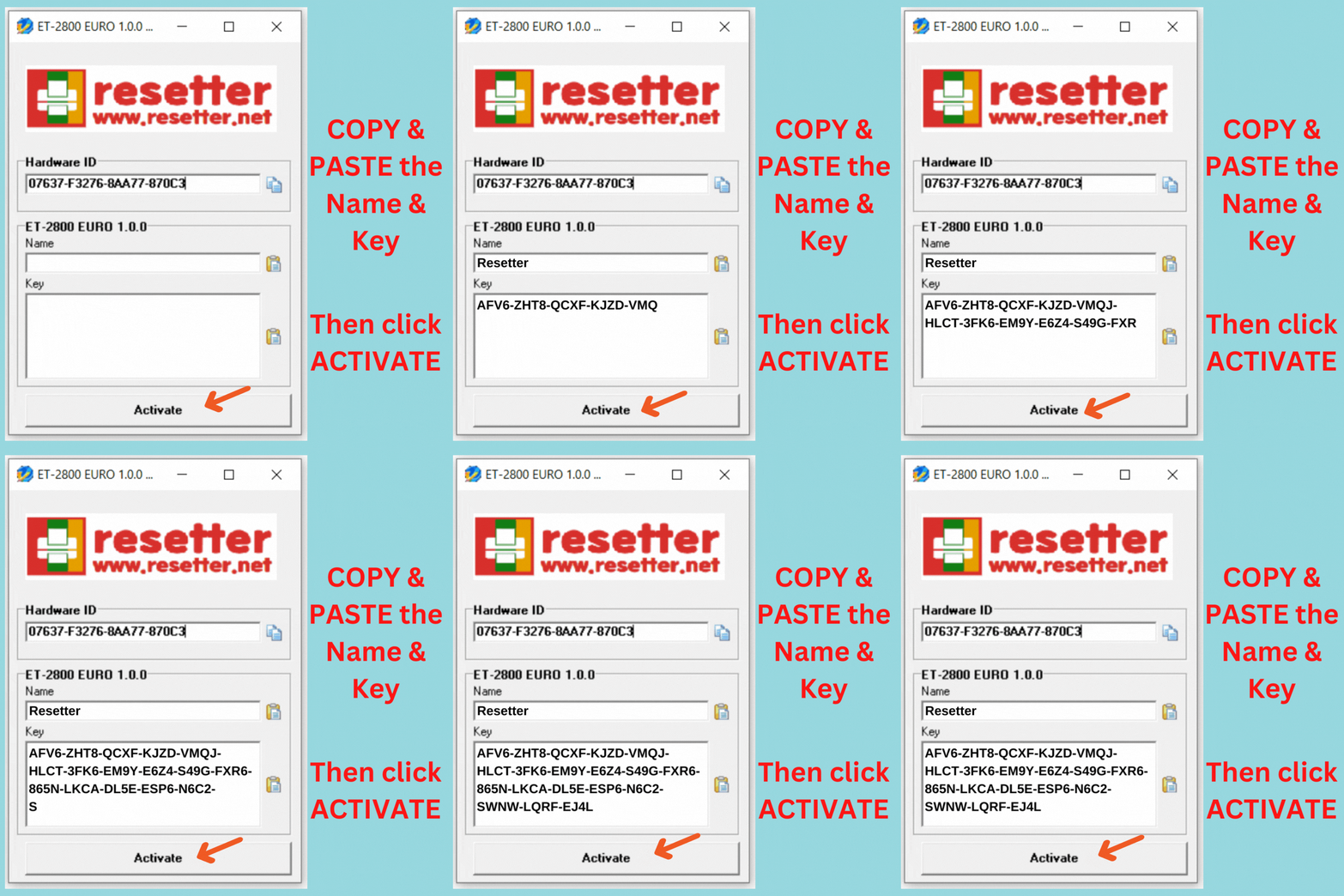
| How to activate the Adjustment Program or Service Tool? |
|---|
| 1. Open the Adjprog.exe to get the hardware ID and buy the activation key. |
| 2. Copy the Name and Key. |
| 3. Paste the Name and Key into the Registration Dialog. |
| 3. Click Register or Activate. |
| How to Reset the Printer Waste Ink Pad Counter Using Adjprog |
|---|
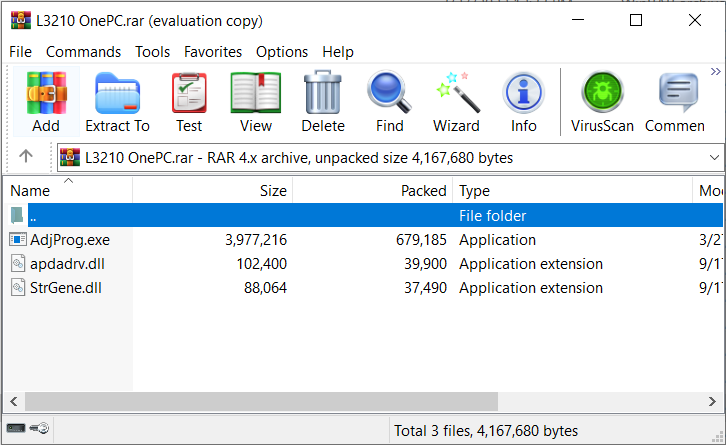
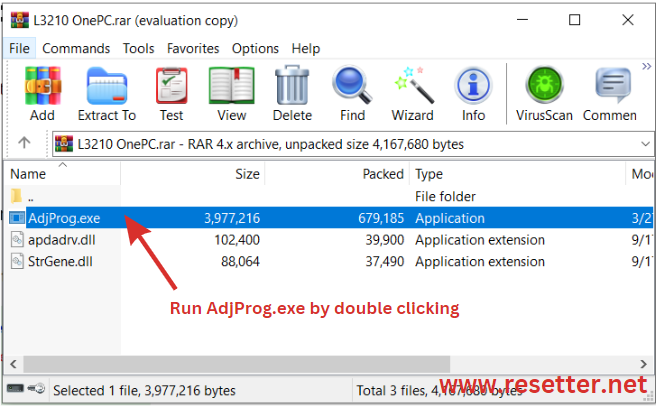
| 1. Open the Epson resetter file using WinRar. |
| 2. Run Adjproge.exe. |
| 3. On the EPSON Adjustment Program, click “Select” and choose the Model name. |
| 4. After selecting the model name, choose the USB connection with the same model name. |
| 5. Click “Particular Adjustment Mode“. |
| 6. Select “Waste ink pad counter” then click “OK”. |
| 7. In the Waste ink pad counter option, check the “Main pad counter” and then click “Check“. |
| 8. After reading the counter, check the “Main pad counter” again and click “Initialize” to reset the ink pad counter to zero. |
| Finally, reboot the printer. Enjoy printing! |
Frequently Asked Questions
Epson Adjustment Program is a software utility tool that helps users reset the waste ink pad counter and resolve various errors related to Epson printers. It is an essential tool for those who own or use Epson printers, especially when they are experiencing technical issues. This program can also be used to perform maintenance tasks such as cleaning the printhead nozzles and checking ink levels. The Epson Adjustment Program is easy to install and use, even for beginners. The software has a user-friendly interface that guides users through the different procedures involved in printer maintenance and repair. Once installed, it will automatically detect your printer model and provide you with a list of available options. From there, you can choose which task you want to perform, depending on your printer’s specific needs. Overall, the Epson Adjustment Program is an essential tool for those who want to keep their Epson printers in top condition.
You can use the resetter when the waste ink pad counter of a printer gets full or reaches its limit of printing. Generally, you may see an error notification “Service Required”.
The Epson Adjustment Program is a powerful tool that enables users to reset and adjust various settings on their Epson printers. This program is primarily used for troubleshooting purposes, as it offers a range of solutions for common printer issues such as clogged print heads, low ink levels, and paper jam errors. The program also offers advanced features such as calibration and alignment options to ensure optimal print quality. One of the key uses of the Epson Adjustment Program is to reset the waste ink pad counter. Over time, every printer accumulates waste ink which is stored in a pad located at the bottom of the printer. When this pad reaches its limit, an error message will appear indicating that the printer needs servicing. However, using the adjustment program allows you to reset this counter and continue printing without any interruptions. Another useful feature of this program is its ability to adjust print head alignment.Each model’s cost ranges from 10 USD to 20 USD or more depending on the model of the resetter program. Price can be negotiable at a reasonable price.
Yes. It is 100% safe. Normally, all resetters are detected as viruses but these are considered False Positives. This is because the program can adjust the printer settings.
Step-by-step Instructions on How to Reset Waste Ink Pad Using Epson Printer Adjustment Program Resetter Tool 1. Open the Epson Resetter using Winrar 2. Run Adjproge.exe 3. On the EPSON Adjustment Program, click “Select” and choose the Model name 4. After selecting the model name, choose the USB connection with the same model name 5. Click “Particular Adjustment Mode“ 6. Select “Waste ink pad counter” then click “OK” 7. In the Waste ink pad counter option, check the “Main pad counter” then click “Check“ 8. After reading the counter, check the “Main pad counter” again and click “Initialize” to reset the ink pad counter to zero 9. Turn OFF the printer and turn it ON again 10. Reset DONE. Enjoy printing!
No. The One-PC activation key can be used on only one computer where the hardware ID is obtained. The activation key is bound to the hardware ID of the computer. If you want to use the resetter program on many PCs, you need to use Keygen.
A one-time key is an activation key that can expire or has limited execution from the day that you receive the key. You need to buy another key if you need to reset other printers.
An unlimited key is an activation key that does not expire and can be used without limit on only ONE PC. One PC means you can’t use the unlimited key to other computers or PCs. You need to buy another unlimited for another PC.
No. You won’t be able to reset ink cartridges through the Reset Printer Program. To do otherwise, you have to buy CISS or Auto-Reset Chips, or else purchase a new cartridge with a Cartridge Resetter. We don t provide this product.
Reviews
There are no reviews yet.